
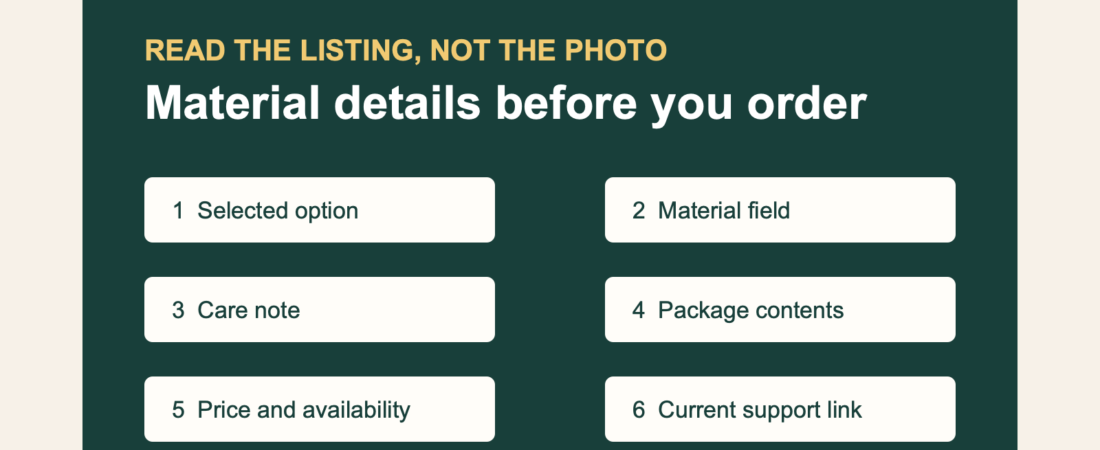
A material label is useful only when it is attached to the exact item and option on the page. A colour, a close-up image, or a familiar product name cannot replace the written field.
WooCommerce treats product attributes as structured details that can be displayed on a product page and used to define variations. That is a practical reason to read a material listing carefully before adding an item to the basket.
1. Find the written material field
Look in the product details, additional information, or specifications area. If a material is not stated, do not infer it from the photo.
2. Match it to the selected option
When a page has options, confirm the active choice before comparing details. The selected-model checklist helps keep that choice consistent through checkout.
3. Keep material and care notes separate
A material label describes one field; a care note may describe handling or storage. Read both exactly as shown and avoid extending either into a claim the page does not make.
4. Compare the same field across listings
For similar products, line up the written material, selected option, dimensions where shown, package contents, price, and availability. The comparison guide offers a simple order for that check.
5. Check package contents separately
The item material does not answer what is included. Use the package-contents guide before relying on styled images or accessories shown beside the product.
6. Ask with the current link
If the written information remains incomplete, send the product link and selected option to private order support. That is more useful than asking a broad question without the page being reviewed.
A short material-listing check
- Exact product and selected option
- Written material field
- Care or handling note where shown
- Dimensions and package contents
- Price and availability
- Current link for private support
Browse soft-touch forms and pumps and accessories through their written product details. Clear fields make a quiet, considered decision possible before payment.