
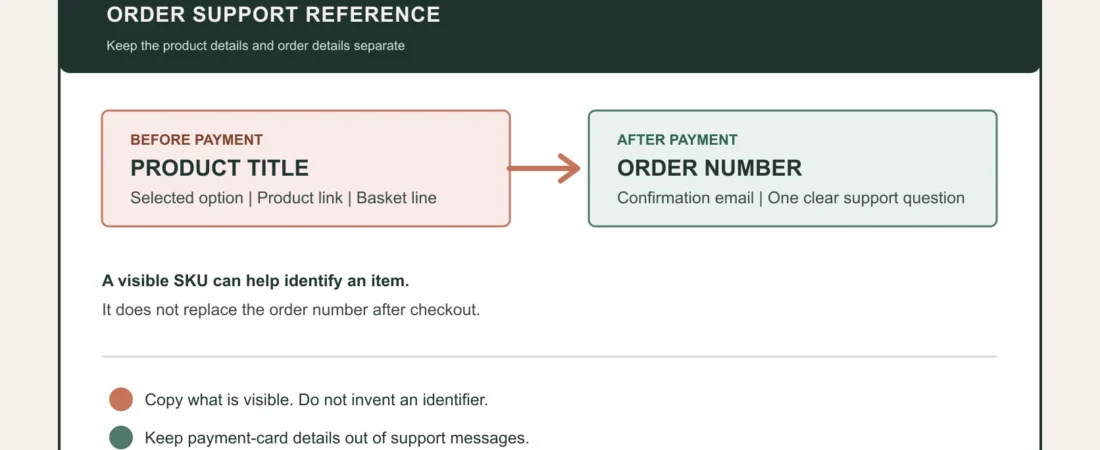
When an order question needs support, a short set of accurate details is more useful than a long description from memory. The product title, the option selected, the product-page link, the order number, and the basket line each do a different job. Keeping the right details makes it easier to explain what you saw and what you need confirmed.
It also helps to separate product identifiers from order identifiers. WooCommerce can send customers a processing-order email containing order details after payment, and its email settings include an {order_number} placeholder. That order number identifies the purchase. A product reference or SKU, if one is visible, identifies an item or option; it is not a substitute for the order number.
1. Start with the exact product title
Copy the title as it appears on the product page or in the basket. A store may have several products with related names, so a broad description such as “the black one” leaves too much room for interpretation. The visible title gives support a reliable starting point.
2. Keep the selected option with it
If the page offers a model, size, finish, or configuration, note the option that was active when you added the item. The selected-model checklist explains why this matters: one product page can contain choices with different images, prices, or availability. A title without its selected option can still be incomplete.
3. Save the product-page link
The product URL preserves the page you were viewing, even when a shopper-facing SKU is not shown. Paste the link into a support request rather than relying only on a screenshot. It gives the support team a direct route to the product description, written specifications, and current option list.
4. Treat a visible SKU as a helpful extra
SKU means stock keeping unit. It is commonly used by stores to identify an item, but it is not guaranteed to be displayed to shoppers. If you can see one, include it exactly as shown, alongside the title and selected option. If no SKU appears, do not invent one or assume the product title is an SKU. The title, option, and page link are enough to begin a clear conversation.
5. Use the basket line before payment
The basket is the last pre-payment record of the item you chose. Check the product title, selected option, quantity, and price together. If an optional item or display component has caused confusion, compare the written contents with the package-contents guide before you pay.
6. Use the order number after checkout
Once payment is made, use the order confirmation and its order number for any request about that purchase. It lets support locate the transaction without asking you to describe every product again. WooCommerce’s standard emails distinguish processing, completed, refunded, and other order states, so keep the confirmation rather than assuming that a product-page reference alone can identify an order.
A simple support note
A concise message can contain: the product title, selected option, product-page link, visible SKU if there is one, and the order number only when an order has been placed. Add the exact question, such as whether a written detail applies to the selected option or whether the basket line matches the product page. Avoid sending payment-card details or unnecessary personal information in a support message.
Keep the records in the right order
- Before payment: product title, selected option, product-page link, basket line.
- If visible: SKU or product reference, copied exactly.
- After payment: order-confirmation email and order number.
- For a question: one clear sentence describing the detail that needs confirmation.
This small record is especially useful for private orders, where a shopper may prefer a short, focused exchange. Use private order support when a written product detail, a selected option, or an order-confirmation line is unclear. You can also browse current soft-touch forms and pumps and accessories by their written product details.