
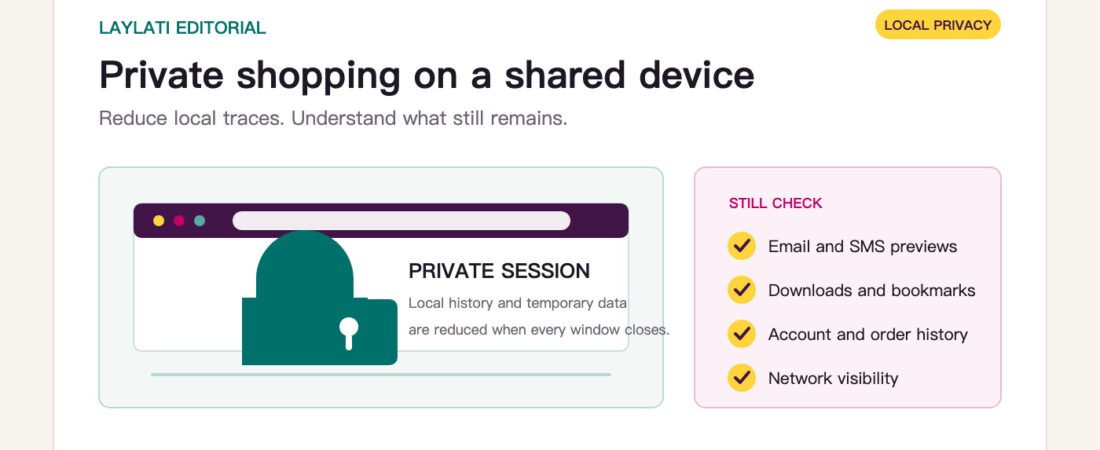
Private online shopping on a shared device has two separate privacy questions. The first is what the browser leaves behind for the next person who uses the phone, tablet, or computer. The second is what the store, payment provider, email service, mobile network, and internet connection can still record.
Private browsing helps mainly with the first question. It can reduce local history, cookies, and form data after the session ends. It does not make checkout anonymous, erase an order from a store account, remove an email receipt, or prevent a network operator from seeing that a connection occurred.
What private browsing changes on the device
Google describes Chrome Incognito as a separate browsing session that limits what is saved on the device after every Incognito window is closed. Apple says Safari Private Browsing does not save browsing details or share those pages across the user’s Apple devices.
That is useful on a family computer or another shared device. A product page is less likely to appear in normal browser history, and temporary site cookies are removed when the private session is properly closed.
There are important exceptions. Downloads and bookmarks can remain after the window closes. A page may also stay visible if one private tab is closed while another private window remains open. Private browsing is a session tool, not a one-click cleanup of everything connected to an order.
What private browsing does not hide
The store still needs enough information to process an order. If you sign in, the account can retain order history. If you provide an email address or phone number, confirmation and delivery messages may still arrive there. A payment provider can keep the records required to process the transaction.
Chrome’s own guidance is direct: websites, an employer or school managing the network, and an internet service provider may still be able to observe activity. Private browsing therefore protects local device traces better than it protects network visibility.
This distinction matters because vague promises such as “completely anonymous checkout” are rarely credible. A responsible store should explain the information it needs, keep public-facing messages neutral, and avoid collecting details that have no clear order purpose.
Before opening the store
On a shared device, take a minute to separate the session from the other person’s everyday browsing:
- Open a new private or Incognito window rather than a normal tab.
- Check whether the browser is signed into a shared profile before entering an address or contact details.
- Avoid saving passwords, payment details, addresses, bookmarks, or downloaded invoices on the device.
- Use an email address and phone number whose notifications you control.
- Review lock-screen previews before expecting an order update.
If the device belongs to an employer, school, hotel, or another organization, use a personal device instead when possible. Private browsing does not override device-management or network-monitoring systems.
At checkout, choose clarity over speed
A guest checkout can reduce the need to create a permanent store account, but it does not remove the operational information needed for payment and delivery. Whether guest or signed in, confirm the recipient name, address, phone number, email address, amount, currency, and delivery method before submitting the order.
Also check what will appear in the confirmation. Laylati’s approach is to keep notification wording neutral while placing useful order details inside the order or private support path. That reduces unnecessary exposure without making the message look suspicious or impossible to identify.
Do not rely on browser privacy to correct a careless confirmation subject, an exposed lock-screen preview, or an account left signed in. Device privacy and store-side message design have to work together.
After checkout, close the whole session
Finish the process deliberately. Sign out of any store or payment account opened during the session. Close every private window, not only the final tab. Remove any invoice, screenshot, or image downloaded to the device, and check the downloads list if the browser makes one available.
Then review where the order will continue to appear. Email, SMS, wallet notifications, payment statements, and delivery updates live outside the private browser window. Use the settings on those services to control previews and access; do not assume closing Incognito removes them.
The store has privacy work to do as well
Shopping privacy should not be pushed entirely onto the customer. Saudi data-minimisation guidance from SDAIA offers a useful editorial test: collect information that is necessary and directly connected to a defined purpose, and avoid unnecessary personal data. This article is not a legal assessment, but the principle is practical for ecommerce.
For a private order, the store should use a clear privacy notice, neutral confirmation language, limited lock-screen detail, discreet parcel wording, and a private route for correcting an address or asking a question. The shopper should be able to understand what is collected and why before paying.
A short shared-device checklist
Use private browsing for local device privacy, not as a promise of anonymity. Keep downloads and bookmarks off the shared device. Control the email, phone, and payment notifications connected to the order. Close every private window when finished. Finally, review the store’s privacy, payment, shipping, and order-support pages before checkout.
For more detail, read Laylati’s guides to guest checkout, neutral order confirmations, privacy, payments, and private order support.
Editorial references: Google Chrome Help on Incognito mode, Apple Support on Safari Private Browsing, and SDAIA’s Minimum Personal Data Determination Guideline. Browser and data-minimisation guidance is used for general consumer education, not as a claim of anonymity or legal compliance.